Showing posts with label Wireless. Show all posts

How to Fix AirPods not Connecting to Mac Issue?

 Mostly, AirPods work perfectly with iPhones and iPads. It seems like these truly wireless earphones were designed mainly to work with iPhones and other Apple devices such as Macs were simply an afterthought. At times, users struggle while trying to connect their AirPods to Mac. If your AirPods are not connecting to the Mac, then read on and apply the solutions mentioned below.

Reboot the Mac

  1. First, reach the menu of Apple on your Mac.
  2. Now, click on the Restart option.
  3. You may have to reboot the Mac once more.


Enable Bluetooth and Charge the AirPods

  1. In case the AirPods are not connecting, you simply need to select the icon of Bluetooth from the menu.
  2. If the icon does not appear, then reach the System Preferences section.
  3. Then choose the Bluetooth option and click on the ‘Show Bluetooth’ option.
  4. After that, you can disable Bluetooth on the Mac.
  5. Wait for a moment, then enable it again.

Delete and Re-Add the AirPods with Mac

  1. Firstly, reach the System Preferences option.
  2. Thereafter, you will see a Bluetooth devices list.
  3. In case AirPods are not available in the list, you may have to configure AirPods with Mac.
  4. Otherwise, if you can see them in the list, then choose them.
  5. Now, hit on the ‘X’ icon to delete the AirPods.

 To Re-Add the AirPods:

  1. First, put the AirPods in the case of charging.
  2. Make sure the AirPods are near the Mac.
  3. You should open the case of charging.
  4. Navigate to the System Preferences section.
  5. Then select the Bluetooth option.
  6. Now, you should reach the list of devices and choose the AirPods option, and then hit on the Connect button.

Configure AirPods on Mac

  1. Navigate to the System Preferences section.
  2. Then reach the Bluetooth option and click on it.
  3. After that, enable Bluetooth.
  4. You should place the AirPods into the case of charging.
  5. Thereafter, open the charging case lids.
  6. Finally, long-press the button of setup at the backside of the case.
  7. You have to wait until the white lights start blinking and then let go of the button.
  8. Now, you can see AirPods in the list of Bluetooth devices.
  9. Finally, hit on the Connect button.

Reset AirPods 

  1. Place the AirPods in the case of charging and make sure both devices are charged well.
  2. Then shut the lid for a minimum of 30 seconds, then open it once again.
  3. You can locate the setup button over the charging case’s backside, long press on it for 15 seconds.
  4. Wait until you see the amber and white light.
  5. Now, you can set up the AirPods with Mac.

How to Connect 2 Pairs of AirPods to One Mobile Simultaneously

 Airpods are one of the best true wireless earbuds these days, and not only do they sound incredible, but they come with Siri, making them smart earphones too. Have you ever thought about connecting two AirPods to one smartphone at the same time?

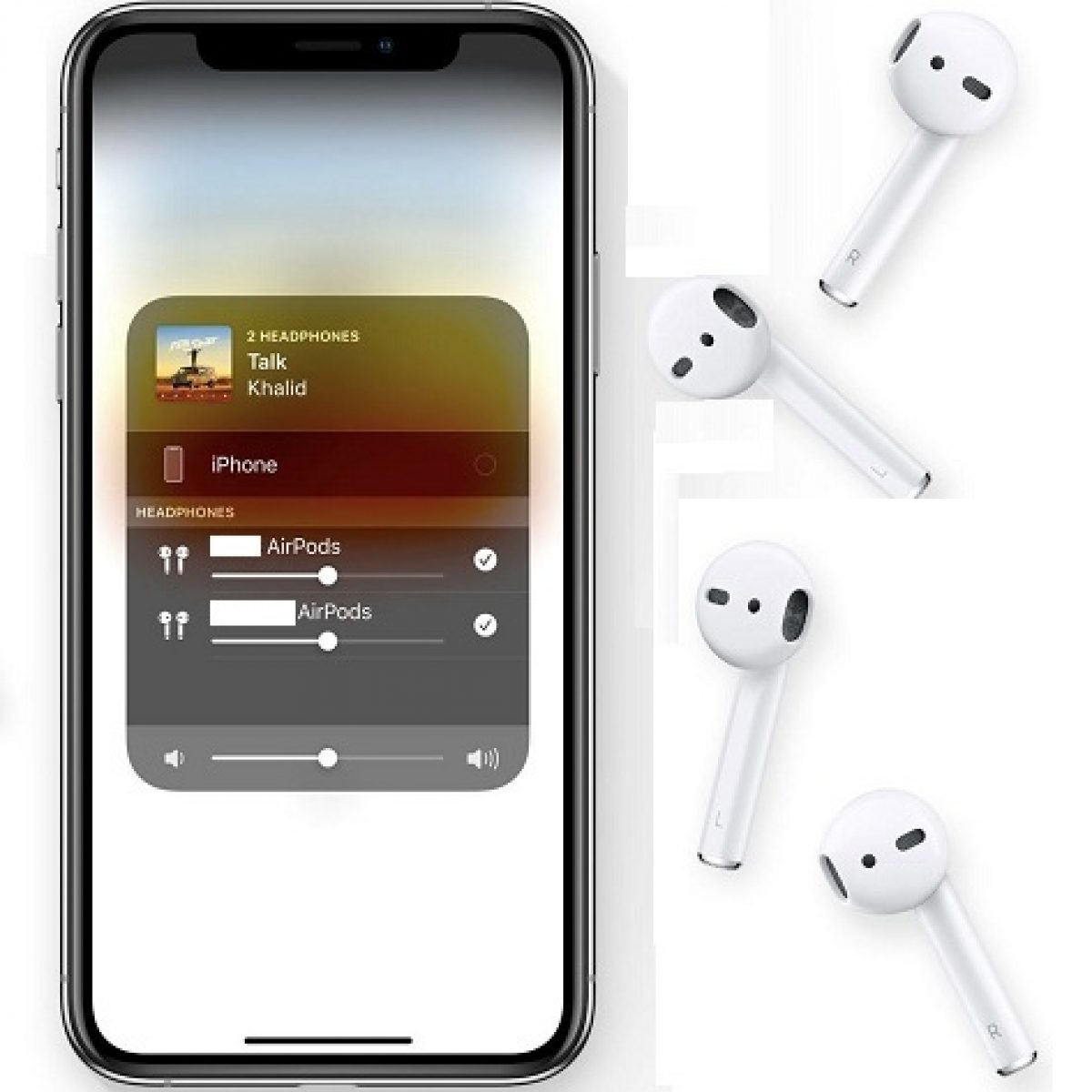
Joining two AirPods to a single iPhone is not challenging, and it only requires a little knowledge. This guide will show you everything you need to learn to connect 2 AirPods to a mobile simultaneously.

Connect More Than One AirPods to Your iPhone

You have to know some points before you dive into how to pair multiple AirPods to the iPhone. Here is what you need to know before you start this process:

  1. You need at least iOS 13.1 on your iPhone to make this happen.
  2. Any iPhone with iOS 13.1 or later will be ok for this process.
  3. You can use standard AirPods too.
  4. AirPods with the wireless charging case will be ok too.
  5. AirPods Pro will also work correctly.
  6. That’s all you need to know to pair 2 AirPods to a device.


How to Pair Two AirPods to Your iPhone

There are plenty of benefits of connecting multiple true wireless earphones to your mobile. You will be able to share your music with your friends without sacrificing your secondary earbud.

If you wish to make it happen, you will have to carefully observe the steps provided down here and follow them accordingly:

  1. First and foremost, connect the first AirPods to your iPhone as you typically do.
  2. Now navigate to the Control Centre of your iPhone. To do so, swipe downwards on the screen from top to bottom. If your iPhone is older than iPhone X, swipe upwards on your iPhone screen from down to up.
  3. Find and select the AirPlay button from the music controls. It is a circular icon inside which you will see a triangle shape. It is typically located on the top right corner of the control center of the iPhone.
  4. The secondary AirPods has to be in the charging case, and the cap of the case should be left open while connecting the secondary AirPods to the same iPhone.
  5. Once you do that, you have to place the case near your iPhone.
  6. Carefully observe the iPhone screen, and you will see the secondary AirPods there.
  7. All you have to do is press the ‘share audio’ button on the iPhone to connect the secondary AirPods.
  8. Now play a song on your iPhone, and both the first and the second AirPods will play the same music. Now you and your friend are all set to listen to the same song from your phone.

That is how you can effortlessly connect two pairs of AirPods to a single iPhone. Wasn’t it easy? Indeed.

Controlling the Audio of the AirPods

Since you have connected to 2 earphones to your device, the next thing you will ask would be how to control the audio in both earphones. For example, you should know how to increase or decrease volume independently on these AirPods.

Let’s learn all these things so that you can use multiple AirPods with a single iPhone efficiently.

To control the content you are playing on AirPods, access the iPhone to which your earphones are connected. There is no way to play two different things on both AirPods. So whatever the main iPhone plays will be audible to both listeners.

If you wish to control the volume on both of these headsets, see these steps:

  1. Please navigate to the control center of your iPhone, as we showed you before.
  2. Select the volume slider.
  3. You will find there two different volume controls to control the volume of each pair.
  4. You will be able to distinguish which device volume you are increasing or decreasing easily.

Separate volume controls for each pair allow both listeners to adjust volume as per their preferences. We hope this much information regarding this query is more than sufficient, and we hope you liked it.


Source:-    How to Connect 2 Pairs of AirPods to One Mobile Simultaneously

Some Excellent Keyboards You Can Buy

 There are many keyboards available in the market, including RBG-lit gaming keyboards, cheap no-frills keyboards, mechanical keyboards, ergonomic keyboards, and projection keyboards with no physical keys. So which one should you buy? Well, it’s quite challenging to choose a decent keyboard from these many options. Don’t worry! We are here to help you decide on the right keyboard for your computer. Let’s get started.

Microsoft Surface Ergonomic

Microsoft Surface Ergonomic is one of the best ergonomic wireless keyboards available in the market right now. It is pretty slim and looks very stylish. The keyboard features a split, curved shape design along with a double-cushioned palm rest and stylish keys. The best thing about the Microsoft Surface Ergonomic keyboard is that you won’t hear any button-noise while typing, and it is quite durable. It is a fantastic keyboard, and you should buy it.


Kinesis Freestyle2

Kinesis Freestyle2 is a pretty amazing keyboard. It has a fully split design, and a 9-inch cable links both parts of the keyboard. So you can position both the sides of the keyboard according to your comfort. It is another pretty great keyboard, and you should consider buying it.

Logitech K350 Wireless Keyboard

Logitech K350 wireless keyboard is an excellent option you can get at an affordable price. This one is also an ergonomic keyboard that offers you a full number pad and shortcut buttons that you can even customize. It boasts a fantastic Logitech’s 2.4 GHz Unifying receiver, and you even get three years of battery life. Its design is not so impressive, but this one is an excellent affordable option you can buy if you are ok with its design.

SteelSeries Apex Pro

SteelSeries Apex Pro is an excellent gaming keyboard that offers you supreme build quality along with outstanding OmniPoint Switches and adjustable actuation points. It lets you switch between different profiles very quickly, thanks to its minimal response time. It is undoubtedly an extremely versatile keyboard you can buy.

Redragon K552

Redragon K552 is a pretty decent mechanical keyboard you can buy at under $40. Its design is not so stylish, but you will be delighted with its performance.

Sungwoo Foldable Silicone Keyboard

Sungwoo Foldable Silicone Keyboard is a rollable option, and this one is great. Well, most rollable keyboards are useless, but this one will give you a nice experience. You can connect it via plug-and-play USB. It even doesn’t make noise while typing, and when you roll the keyboard, it gets almost equal to the size of a computer mouse. It is even dustproof and waterproof, and you can purchase it for under $20.

Logitech K480 Tablet Keyboard

Logitech K480 is an excellent keyboard for typing on a tablet. It offers you a very compact design, a built-in slot to hold your tablet as well as phone. It measures just 12-inches wide. You can connect your devices via Bluetooth as it has multi-device compatibility, and you can use the small toggle and switch between the devices. It’s an excellent keyboard that you should consider buying.

These are all our picks for keyboards, and we strongly recommend that you buy one of the keyboards mentioned above based on your requirements. We would like to add a few other keyboards also in this list such Logitech K780 wireless keyboard, Apple Magic Keyboard, Logitech Craft, Atteck HB030B Universal Slim Portable wireless keyboard, Jelly Comb Foldable Bluetooth keyboard, Razer Huntsman Mini, Logitech G613 Lightspeed, Razer Huntsman Elite, and Razer Cynosa Chroma.


Source:-   Some Excellent Keyboards You Can Buy

These Are the Best Power Banks You Can Buy Right Now

 Smartphones these days come with a lot of features, bright screens, and heavy specs, and all of this results in these devices consuming a lot of power. However powerful is the battery of your phone, that hardly can run more than a day so, it is always a wise choice to keep the backup. There are a lot of power banks available in the market which can fulfill your needs for some extra juice on your phone when traveling, facing a power cut, or unable to charge your device. It is better to buy a power bank with a bigger capacity, and you should also consider the charging speed if you are looking to buy a new power bank. All of those choices available in the market can leave you confused, so we have got you covered. In this article, we have listed the best power banks available in the market. Let’s scroll down and find the best pick for you.

Anker PowerCore Slim 10,000 PD

Anker PowerCore Slim 10,000 PD is one of the best low capacity portable batteries available in the market. As the name suggests, this power bank packs a 10,000 mAh battery. This power bank is going to be useful if you need to charge your phone quickly as the USB-C port of this charger can charge your device at up to 18W. However, the standard USB-A port is also capable of delivering a charging output of 12W, which is not slow either. Despite packing a powerful battery of 10,000 mAh, this power bank is not bulky, and it is as compact as most of the smartphones when it comes to size. You can fully charge most of the smartphones twice with this device, after charging it once fully.


RAVPower 20,000mAh Power Bank

If you are looking for a power bank with a bigger capacity, then the RAVPower 20,000mAh power bank is a good choice available in the market. This power bank comes with a powerful 20,000mAh battery that is capable of charging any regular smartphone fully up to four times. What makes this power bank outstanding is its capacity to deliver power of up to 60W with the USB-C port, and that will charge any smartphone at lightning speed. On the other hand, this power bank recharges at the speed of 30W, and it takes only 3 hours for this power bank to charge completely, which makes it one of the best power banks.

Anker Powercore III Elite

Anker Powercore III Elite is a high capacity power bank which packs a 25,600mAh battery. This device allows you to charge 4 devices at the same time as there are two USB-C ports and two USB-A ports available on this device. This power bank delivers 87W of power to charge your device quickly. The huge capacity makes this charger suitable for tablets and laptops too.

Samsung 2-in-1 Power Bank With A Wireless Charger

Samsung 2-in-1 power bank with a wireless charger does two functions at the same time, and that makes it a great pick for you. This power bank features a power capacity of 10,000mAh, and the best part is that it can be used both as a power bank as well as a wireless charger, as it features a wireless charging pad on the top. While charging a phone wirelessly, this device delivers the power of up to 7.5W, but if connected with a USB, your phone can receive the power of up to 25W. This device is a great choice for Samsung users, although Qi-compatibility makes it suitable for other devices as well.

Crave PowerPack PD

Crave PowerPack PD is for those who travel often and want to avoid the hustle of putting their phone on charge now and then. This power bank features a powerful 50000mAh capacity battery that can charge any regular smartphone so many times, and even laptops can be charged for more than once. This powerful power bank features two USB-C ports for fast charging and can deliver power of up to 60W. The other two USB ports feature Qualcomm QuickCharge 3.0 support.

You must be very careful while buying a new power bank, as you are going to use it for a long period. In this article, we have listed the best power banks available in the market right now, and you can buy any of these according to your budget and needs.


How to Fix AirPods not Connecting to Mac Issue?

  Mostly, AirPods work perfectly with iPhones and iPads. It seems like these truly wireless earphones were designed mainly to work with iPho...