Showing posts with label Connect. Show all posts

How to Fix AirPods not Connecting to Mac Issue?

 Mostly, AirPods work perfectly with iPhones and iPads. It seems like these truly wireless earphones were designed mainly to work with iPhones and other Apple devices such as Macs were simply an afterthought. At times, users struggle while trying to connect their AirPods to Mac. If your AirPods are not connecting to the Mac, then read on and apply the solutions mentioned below.

Reboot the Mac

  1. First, reach the menu of Apple on your Mac.
  2. Now, click on the Restart option.
  3. You may have to reboot the Mac once more.


Enable Bluetooth and Charge the AirPods

  1. In case the AirPods are not connecting, you simply need to select the icon of Bluetooth from the menu.
  2. If the icon does not appear, then reach the System Preferences section.
  3. Then choose the Bluetooth option and click on the ‘Show Bluetooth’ option.
  4. After that, you can disable Bluetooth on the Mac.
  5. Wait for a moment, then enable it again.

Delete and Re-Add the AirPods with Mac

  1. Firstly, reach the System Preferences option.
  2. Thereafter, you will see a Bluetooth devices list.
  3. In case AirPods are not available in the list, you may have to configure AirPods with Mac.
  4. Otherwise, if you can see them in the list, then choose them.
  5. Now, hit on the ‘X’ icon to delete the AirPods.

 To Re-Add the AirPods:

  1. First, put the AirPods in the case of charging.
  2. Make sure the AirPods are near the Mac.
  3. You should open the case of charging.
  4. Navigate to the System Preferences section.
  5. Then select the Bluetooth option.
  6. Now, you should reach the list of devices and choose the AirPods option, and then hit on the Connect button.

Configure AirPods on Mac

  1. Navigate to the System Preferences section.
  2. Then reach the Bluetooth option and click on it.
  3. After that, enable Bluetooth.
  4. You should place the AirPods into the case of charging.
  5. Thereafter, open the charging case lids.
  6. Finally, long-press the button of setup at the backside of the case.
  7. You have to wait until the white lights start blinking and then let go of the button.
  8. Now, you can see AirPods in the list of Bluetooth devices.
  9. Finally, hit on the Connect button.

Reset AirPods 

  1. Place the AirPods in the case of charging and make sure both devices are charged well.
  2. Then shut the lid for a minimum of 30 seconds, then open it once again.
  3. You can locate the setup button over the charging case’s backside, long press on it for 15 seconds.
  4. Wait until you see the amber and white light.
  5. Now, you can set up the AirPods with Mac.

How to Connect 2 Pairs of AirPods to One Mobile Simultaneously

 Airpods are one of the best true wireless earbuds these days, and not only do they sound incredible, but they come with Siri, making them smart earphones too. Have you ever thought about connecting two AirPods to one smartphone at the same time?

Joining two AirPods to a single iPhone is not challenging, and it only requires a little knowledge. This guide will show you everything you need to learn to connect 2 AirPods to a mobile simultaneously.

Connect More Than One AirPods to Your iPhone

You have to know some points before you dive into how to pair multiple AirPods to the iPhone. Here is what you need to know before you start this process:

  1. You need at least iOS 13.1 on your iPhone to make this happen.
  2. Any iPhone with iOS 13.1 or later will be ok for this process.
  3. You can use standard AirPods too.
  4. AirPods with the wireless charging case will be ok too.
  5. AirPods Pro will also work correctly.
  6. That’s all you need to know to pair 2 AirPods to a device.


How to Pair Two AirPods to Your iPhone

There are plenty of benefits of connecting multiple true wireless earphones to your mobile. You will be able to share your music with your friends without sacrificing your secondary earbud.

If you wish to make it happen, you will have to carefully observe the steps provided down here and follow them accordingly:

  1. First and foremost, connect the first AirPods to your iPhone as you typically do.
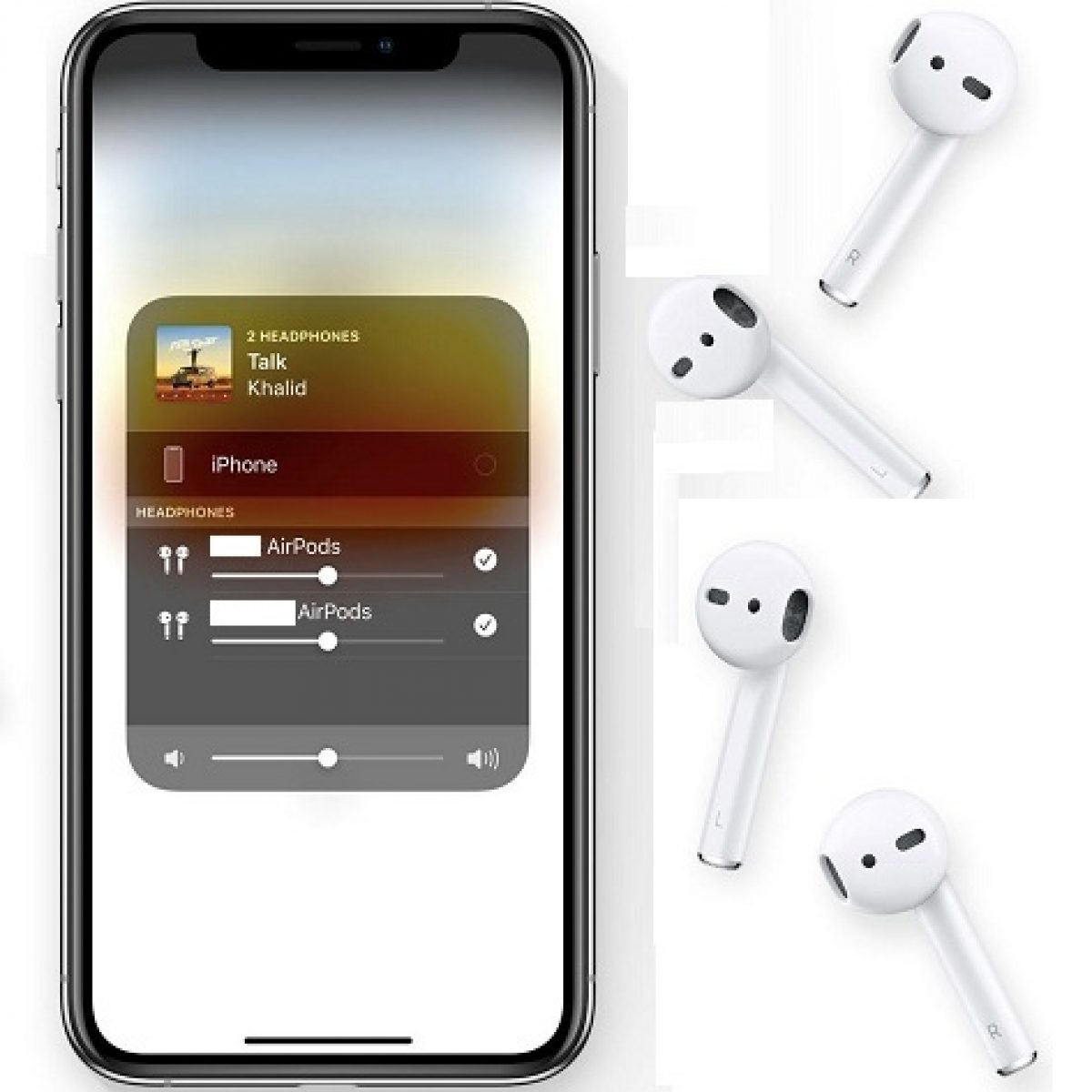
  2. Now navigate to the Control Centre of your iPhone. To do so, swipe downwards on the screen from top to bottom. If your iPhone is older than iPhone X, swipe upwards on your iPhone screen from down to up.
  3. Find and select the AirPlay button from the music controls. It is a circular icon inside which you will see a triangle shape. It is typically located on the top right corner of the control center of the iPhone.
  4. The secondary AirPods has to be in the charging case, and the cap of the case should be left open while connecting the secondary AirPods to the same iPhone.
  5. Once you do that, you have to place the case near your iPhone.
  6. Carefully observe the iPhone screen, and you will see the secondary AirPods there.
  7. All you have to do is press the ‘share audio’ button on the iPhone to connect the secondary AirPods.
  8. Now play a song on your iPhone, and both the first and the second AirPods will play the same music. Now you and your friend are all set to listen to the same song from your phone.

That is how you can effortlessly connect two pairs of AirPods to a single iPhone. Wasn’t it easy? Indeed.

Controlling the Audio of the AirPods

Since you have connected to 2 earphones to your device, the next thing you will ask would be how to control the audio in both earphones. For example, you should know how to increase or decrease volume independently on these AirPods.

Let’s learn all these things so that you can use multiple AirPods with a single iPhone efficiently.

To control the content you are playing on AirPods, access the iPhone to which your earphones are connected. There is no way to play two different things on both AirPods. So whatever the main iPhone plays will be audible to both listeners.

If you wish to control the volume on both of these headsets, see these steps:

  1. Please navigate to the control center of your iPhone, as we showed you before.
  2. Select the volume slider.
  3. You will find there two different volume controls to control the volume of each pair.
  4. You will be able to distinguish which device volume you are increasing or decreasing easily.

Separate volume controls for each pair allow both listeners to adjust volume as per their preferences. We hope this much information regarding this query is more than sufficient, and we hope you liked it.


Source:-    How to Connect 2 Pairs of AirPods to One Mobile Simultaneously

How to Fix AirPods not Connecting to Mac Issue?

  Mostly, AirPods work perfectly with iPhones and iPads. It seems like these truly wireless earphones were designed mainly to work with iPho...